Adding Photos
Two ways to bring photos onto a page, plus tagging and organization.
3 min read
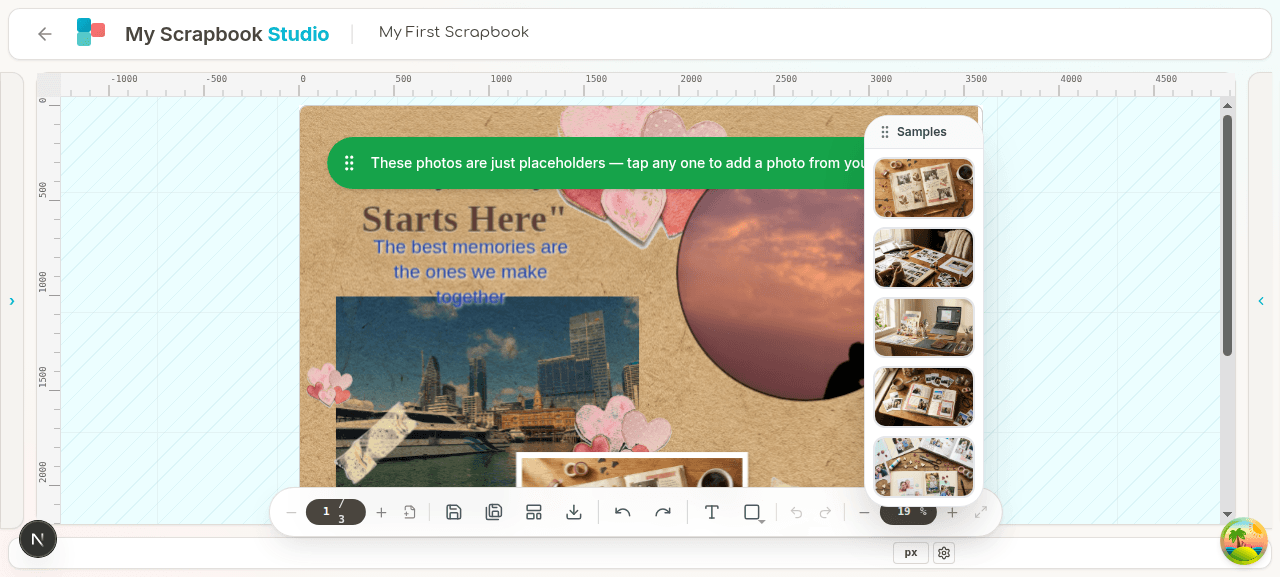
Photos are usually the first thing on a page. The app has two ways to get them in.
Where photos live#
Important: we don't store your photos on our servers. They're processed on your device, rendered into the page, and the page references them locally. If you reopen a project on a different device, you re-add the photos. This is the privacy guarantee.
For practical purposes that means:
- Photos in a project are tied to where you put them — the folder on your computer, or your in-browser library.
- Moving a project to a new computer = re-link the photos there.
- We never accidentally email your kid's birthday photos to anyone, because we never have them.
Adding photos#
Option A — Connect a folder or a set of photos (recommended)#
The first-run wizard prompts you for this. You can also do it later: open the Photos tab in the right panel → click Connect a photo library.
The browser asks for permission to read that folder. Once granted, the app shows thumbnails of every image inside. Drag any thumbnail onto the canvas to place it.
You can connect multiple folders. They appear as separate sections in the photos panel.
Browser support note: folder connections use the File System Access API, which works in Chrome and Edge. Safari falls back to drag-and-drop or one-off upload.
Photos in the Apple Photos app aren't in a folder you can browse. On a Mac the library is a single sealed package, and on an iPhone or iPad there's no folder at all. In the same wizard, use Choose Photos Instead and pick them from your photo library — they land in the photos panel exactly as a folder's would. On an iPhone or iPad this is the only option shown, because the folder route can't work there.
Option B — Drag from your file manager#
Drag image files straight from Finder / Explorer onto the canvas. They show up as a one-off — they don't get added to your photos library, but they work fine for a quick placement.
Option C — Upload#
Photos tab → Upload. Select files. They load into your browser library and you can drag them onto the canvas. Same caveat as folders: stored locally, not on our servers.
Tagging and organising#
Each photo can have tags. Click a thumbnail in the photos panel → tags input. Tags are great for big libraries — search "beach 2024" and only relevant photos show up.
You can also filter the panel by:
- Source folder
- Tags
- Date taken (when EXIF is available)
Placing a photo on the canvas#
Drag the thumbnail. Drop wherever you want it. The photo lands at its native aspect ratio, scaled down so the whole image fits comfortably on the page.
Adjusting after placement#
With the photo selected:
- Drag the corners to scale (Shift to keep aspect ratio).
- Drag the rotate handle above the top edge to rotate.
- Floating toolbar:
- Rotate 90° left/right
- Flip horizontally / vertically
- Mask (see Masks & Mats)
- Arrange (move forward/back in the layer stack)
- Lock (prevents accidental edits)
- Duplicate
- Delete
Replacing a photo#
Select a photo, then drag a different photo from the panel onto it. The new photo takes over the same frame, mat, and mask — useful for swapping the hero photo on a template without redoing the layout.
Photo editing — adjustments and filters#
Select a photo and check the properties panel for the Adjust section. You can fix colour and tone without leaving the editor:
- Brightness — lift dark photos.
- Contrast — push the difference between lights and darks.
- Saturation — boost or mute the colour intensity.
- Filters — preset looks (e.g. black and white, sepia, vintage).
Adjustments are non-destructive — they're stored on the photo object, applied at render time, and reversed by setting the slider back to zero. The original file on your computer is never modified.
For more advanced editing (heavy retouching, healing, layer masks), use a real photo editor first and import the result. The in-editor tools are scoped to "good enough on the page", not "replace Lightroom."
Next#
05 — Text & Shapes — add words and basic graphics.