Editor Basics
Tour the canvas, toolbars, and panels so the rest of the guides make sense.
2 min read
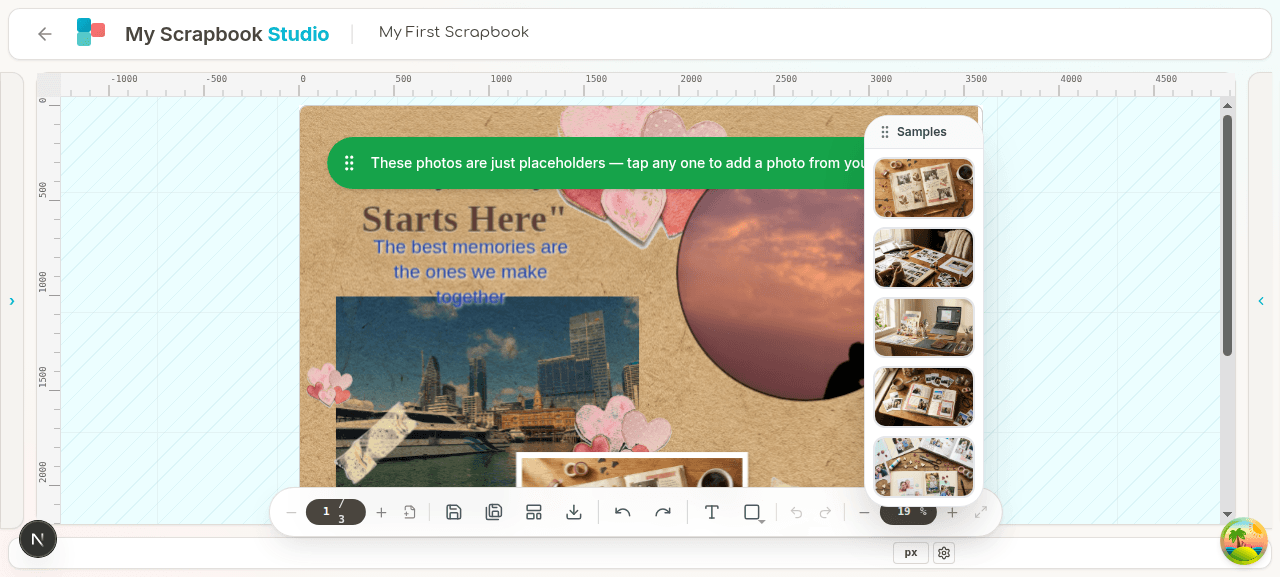
The editor is where you actually build a scrapbook page. This doc explains the layout — every other "how do I…" doc assumes you can find these panels.
Anatomy of the screen#
┌─────────────────────────────────────────────────────────────┐
│  Title bar — project name, save status, undo/redo, account  │
├──────┬───────────────────────────────────┬──────────────────┤
│ Left │                                   │ Right            │
│ panel│                                   │ panel            │
│      │                                   │ (Photos / Kits / │
│ Layers│         CANVAS (your page)       │  Templates /     │
│      │                                   │  Properties)     │
│      │                                   │                  │
├──────┴───────────────────────────────────┴──────────────────┤
│        Spread / page manager (collapsible)                  │
├─────────────────────────────────────────────────────────────┤
│       Floating toolbar (appears over canvas)                │
└─────────────────────────────────────────────────────────────┘
Title bar#
Project name (click to rename), unsaved-changes dot, manual save button (you also get autosave), undo/redo, account menu, back-to-dashboard.
Left panel — Layers#
Every object on your page is a layer. The layers panel shows them top-to-bottom in stacking order. Click a layer to select it. Drag to reorder. Double-click to rename. The eye icon hides without deleting; the lock icon prevents accidental edits.
Right panel — multi-tab#
Tabs at the top:
- Photos — your photo library. Drag a photo onto the canvas to add it.
- Kits — papers, elements, frames you own.
- Templates — pre-built page layouts you can drop in.
- Properties — appears when you have something selected. Lets you tweak the selected object (font size, mat colour, opacity, etc).
Use the chevron on a panel header to collapse it. Use the pin icon to keep it open even when you click off it.
Canvas#
The white rectangle is your page. Drag anything onto it. Click to select. Click empty space to deselect. Scroll the wheel (or pinch on a trackpad) to zoom; hold space to pan.
Floating toolbar#
Sits over the canvas. What it shows depends on what's selected:
- Nothing selected → file ops, undo/redo, insert text, insert shape.
- Photo selected → rotate, flip, mask, arrange, lock, duplicate, delete.
- Text selected → font, size, alignment, bold/italic, colour.
- Shape selected → fill, stroke, alignment.
- Multiple selected → align, distribute, group.
Click the expand button on the toolbar to show creation tools (insert text, insert shape) on top of whatever context tools are showing.
Spread / page manager#
Collapsible bar at the bottom for multi-page projects. Shows page thumbnails. Drag to reorder. Right-click for duplicate / delete / set-as-cover. See 08 — Pages & Spreads.
Saving#
Three ways:
- Autosave — runs after each meaningful change. The title bar dot tells you save status.
- Manual save —
Ctrl+S/Cmd+Sor the toolbar save button. - Make a copy — copies the project under a new name and leaves the original alone.
Drafts (anonymous, pre-sign-in) save to your browser. Real projects (signed in) save to the cloud.
Keyboard shortcuts#
| Action | Shortcut |
|---|---|
| Save | Ctrl/Cmd+S |
| Undo | Ctrl/Cmd+Z |
| Redo | Ctrl/Cmd+Y (or Ctrl/Cmd+Shift+Z) |
| Duplicate selection | Ctrl/Cmd+D |
| Delete selection | Delete |
| Insert text | T |
| Bring to front | Ctrl/Cmd+Shift+] |
| Send to back | Ctrl/Cmd+Shift+[ |
| Export | Ctrl/Cmd+Shift+E |
Touch and tablet#
The app works on tablets but the experience is best with mouse + keyboard. If you load it on a touch-only device a banner appears warning that some interactions (precise drag, modifier-key shortcuts) won't work as well.
Next#
04 — Photos — get your pictures onto the page.