Masks and Mats
The features that make MyScrapbook Studio different — non-destructive photo crops and layered mat backings.
4 min read
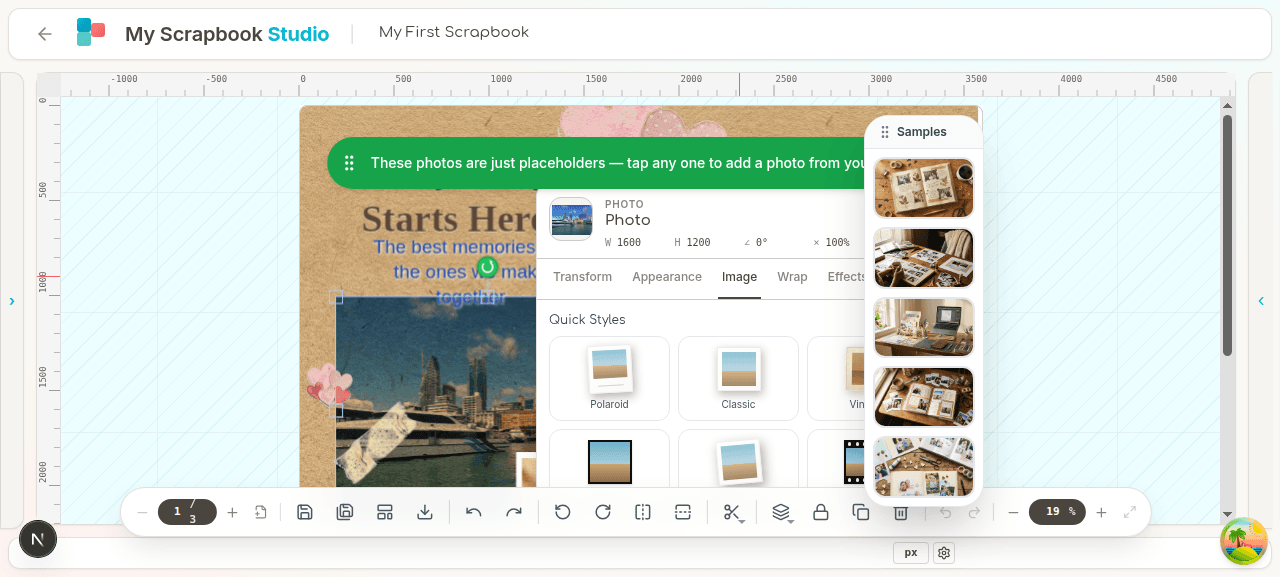
These are the features that make MyScrapbook Studio different from a generic design tool. Worth learning even if you ignore everything else.
Masks — what they are#
A mask is a shape that crops a photo non-destructively. Apply a heart-shaped mask to a photo and you see the photo only where the heart is. Move or resize the mask afterward — the photo stays linked.
Common uses:
- Heart, star, circle masks for theme pages
- Torn-paper edges for vintage looks
- Custom drawn shapes for one-off creative crops
Applying a mask#
- Select a photo on the canvas.
- Floating toolbar → Mask → Select Mask.
- The mask library opens. Browse by category (basic shapes, paper edges, themed shapes, etc).
- Click one. It applies to the selected photo.
The photo now appears clipped to the mask outline. The mask is stored with the photo — moving the photo moves the mask with it.
Editing a mask#
Click the masked photo. Then:
- Resize the mask independently of the photo — there's a mask-edit mode toggle in the properties panel.
- Reposition the photo within the mask — click into the photo, drag.
- Swap the mask — Floating toolbar → Mask → Select Mask, pick a different one.
- Remove the mask — properties panel → Remove mask.
Custom-drawn masks#
Don't see the shape you need? Draw your own.
- Select a photo.
- Toolbar → Mask → Draw custom.
- The custom path drawer appears. Click points around the photo to outline your shape. Close the path by clicking the start point.
- Done — the photo is clipped to your shape.
Saves and reloads cleanly, so your custom mask is preserved next time you open the project.
Mats — what they are#
A mat is the framed border around a photo, like the cardstock you'd glue a photo to in a physical scrapbook. Mats give a page polish — they separate photos from the background and let you stack photos over papers without it feeling busy.
Applying a mat#
- Select a photo.
- Properties panel → Mat section.
- Choose a style:
- Solid colour — pick a colour.
- Patterned paper — pick from your kit papers.
- Drop shadow — adds depth without a coloured border.
- Adjust mat width (how thick the border is) and inner shadow (subtle shadow inside the mat for a paper-on-paper look).
Mats are part of the photo. Move the photo, the mat moves. Resize the photo, the mat resizes.
Drop zones — for templates#
You'll see drop zones in templates. They're rectangular placeholders that say "drop a photo here". Drag any photo onto a drop zone and it auto-sizes, auto-mats, and auto-masks to match what the template designer intended.
This is the magic that makes templates fast — the layout work is pre-done.
Mask favorites#
Found a mask you use a lot? Star it. The mask library has a Favorites view that surfaces only your starred shapes — fast access without scrolling 100+ shapes every time.
To favorite a mask: hover its tile in the library and click the star icon. To unfavorite: click the star again. Favorites are tied to your account, so they follow you across devices.
Combining masks (boolean operations)#
Two masks can be combined to make a new shape. Useful when the library doesn't have exactly the shape you want and drawing custom is overkill.
With a mask selected on a photo, the properties panel exposes boolean operations:
- Union — combine two shapes into one (heart + circle = heart-with-circle blob).
- Intersection — keep only the area where both shapes overlap.
- Difference — subtract one shape from another (heart minus a smaller heart = heart outline).
- Exclude — keep only the area where shapes don't overlap.
How to use: place a second mask shape on the same photo as the first → choose the operation. The result becomes a single combined mask that moves and resizes as one.
This is a serious creative weapon. If you've used Photoshop's pathfinder or Illustrator's boolean panel, it's the same idea applied to scrapbook photo masking.
Tips that aren't obvious#
- Stack masks and mats — apply a mat to a masked photo, the mat follows the mask outline. So a heart-masked photo with a white mat looks like a heart-shaped cutout.
- Match mat colour to your kit paper — use the eyedropper in the colour picker.
- Custom masks save with the project — share the project, the mask shape goes with it.
- Boolean ops + custom drawing — combine a custom-drawn path with a library mask for one-of-a-kind shapes you couldn't get any other way.
Next#
07 — Kits & Templates — how to use them, where to find more.