Text and Shapes
Add captions, titles, and decorative shapes with the text and shapes tools.
2 min read
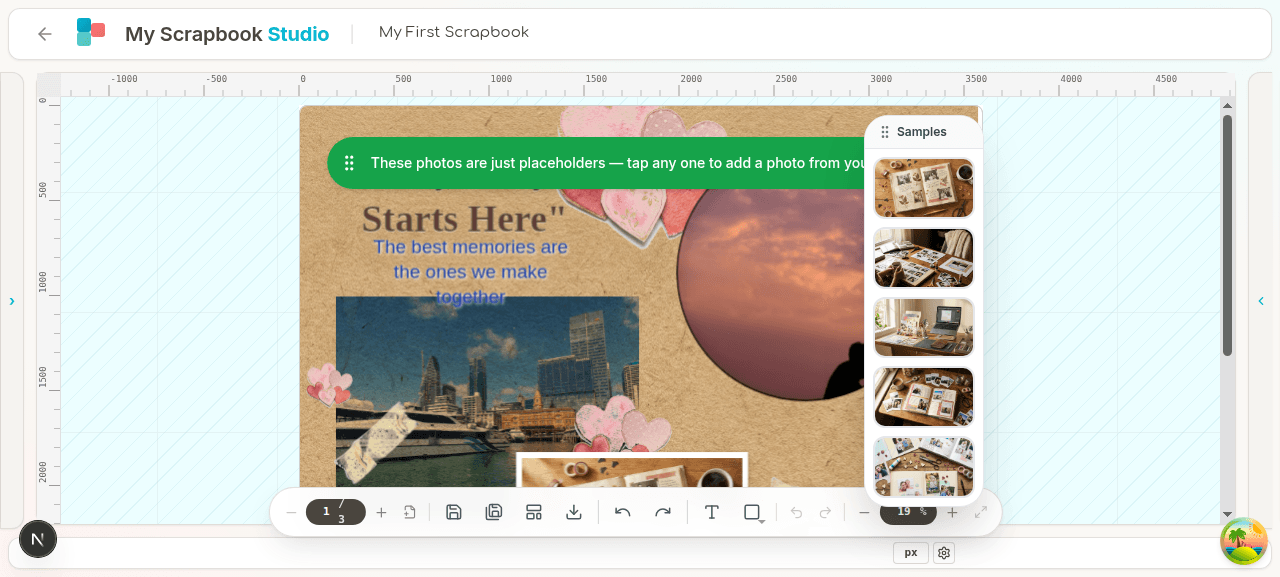
Photos are the heart of a scrapbook page; text and shapes add the personality.
Adding text#
Two ways:
- Press
T. - Floating toolbar → Text icon.
A new text box appears in the centre of the page with placeholder text. Double-click to edit, type your words, click off to commit.
Editing text#
Select a text box. The properties panel (right side) shows:
- Font family — scroll the list of installed fonts. Includes web-safe fonts plus a curated set of scrapbook-friendly display fonts.
- Font size — type a number or use the stepper.
- Bold / italic / underline — toggle buttons.
- Alignment — left, centre, right, justify.
- Colour — colour picker with eyedropper for matching photo tones.
- Character spacing (tracking) — tighten or loosen letter gaps. Useful for headings.
- Line height — tighten or loosen the gap between lines. Useful for journaling blocks.
Curved text#
Want text to follow a curve? With a text box selected → properties panel → Curve section.
- Path type — circle, arc, custom.
- Radius / angle — controls the curve shape.
- Custom path — draw your own path with the pen tool. The text reflows along it.
Curved text is a hero feature — see the dedicated YouTube tutorial.
Adding shapes#
Floating toolbar → Shapes submenu:
- Rectangle
- Circle
- Triangle
Click the shape you want and it lands on the canvas. Drag to reposition, drag corners to resize.
Editing shapes#
With a shape selected, properties panel offers:
- Fill colour (solid or transparent)
- Stroke colour and width
- Corner radius (rectangle only)
- Opacity
Using shapes as backgrounds#
A common scrapbook technique: drop a large rectangle behind everything as a background paper colour. Right-click → Send to back, or use Ctrl/Cmd+Shift+[.
Aligning multiple objects#
Select two or more objects (drag a marquee, or Shift-click). The toolbar shows alignment and distribution controls:
- Align left / centre / right
- Align top / middle / bottom
- Distribute horizontally / vertically (even spacing)
Grouping#
Select multiple objects → Group in the floating toolbar (or Ctrl/Cmd+G). Treats them as one object until you ungroup.
Next#
06 — Masks & Mats — the showcase features.