Your Dashboard
Find your projects, create new ones, and manage drafts from the dashboard.
2 min read
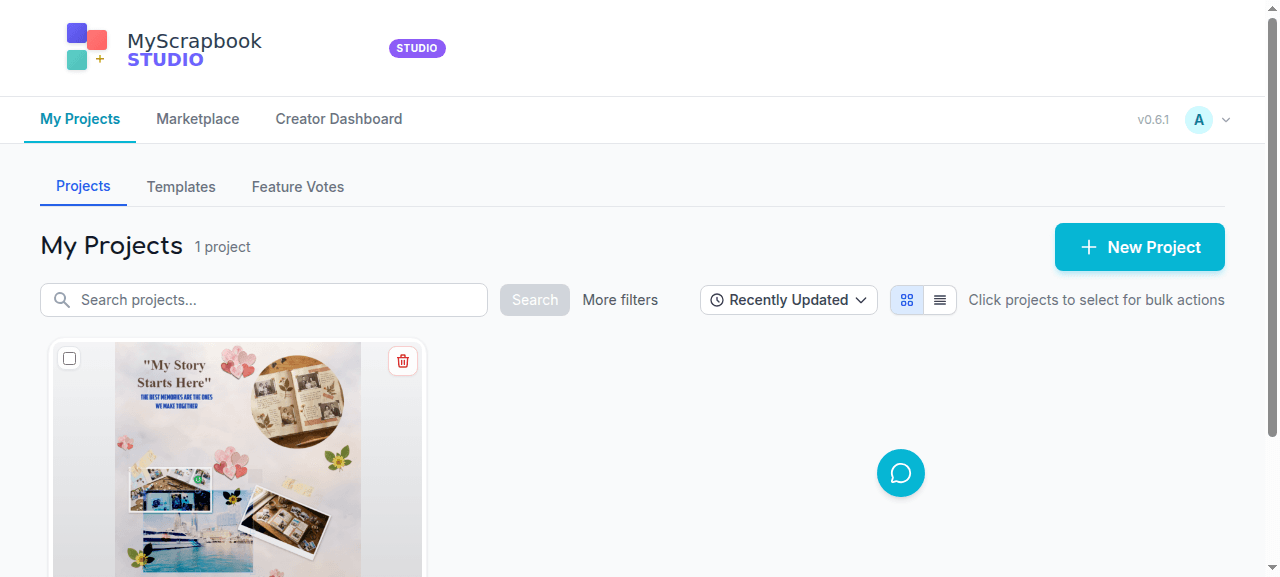
The dashboard at /dashboard is your project list. Open one to keep working, create a new one, or manage what you've already started.
What you see#
- Project tiles — one per scrapbook, each showing a thumbnail of the cover page, the title, and the last-edited date.
- New project button — top-right.
- Plan strip — top of the page, shows which plan you're on and how many projects you've used out of your limit.
- Account menu — top-right corner, jumps to billing, plan, sign-out.
Create a new project#
Click New project. You'll see the Canvas size picker:
- Standard sizes — 12×12 (classic scrapbook), 8.5×11 (letter), 6×8 (mini), and others matching common print services.
- Custom size — type your own width and height in inches, cm, or pixels.
- Start from a template — skip a blank canvas, start from a pre-designed page layout you can fill in.
Click your choice and you're dropped into the editor with that project open and saved.
Open an existing project#
Click any project tile. The editor loads it. You can also right-click a tile (or use the three-dot menu) to:
- Rename — change the project title.
- Duplicate — clone it, useful if you want to riff on a layout.
- Delete — permanent. There's a confirmation.
Filtering & sorting#
The dashboard supports basic sorting (most recent, oldest, alphabetical) and a search box if you have lots of projects. Project tiles are virtualised — having 100+ projects doesn't slow the page down.
Project caps#
If you're on the Free plan and you hit your project limit, the New project button shows a lock icon. Clicking it opens the upgrade prompt rather than the canvas picker. You can still open and edit existing projects without limit.
Drafts that came in with you#
If you were working on a draft before signing in, it shows up here as your first project after the auto-migration finishes. The dashboard handles this silently — you'll just see your draft as a normal project.
Next#
03 — Editor Basics — the layout of the editing screen.