Kits and Templates
Use themed paper packs, elements, and pre-built page layouts to finish a page in minutes.
2 min read
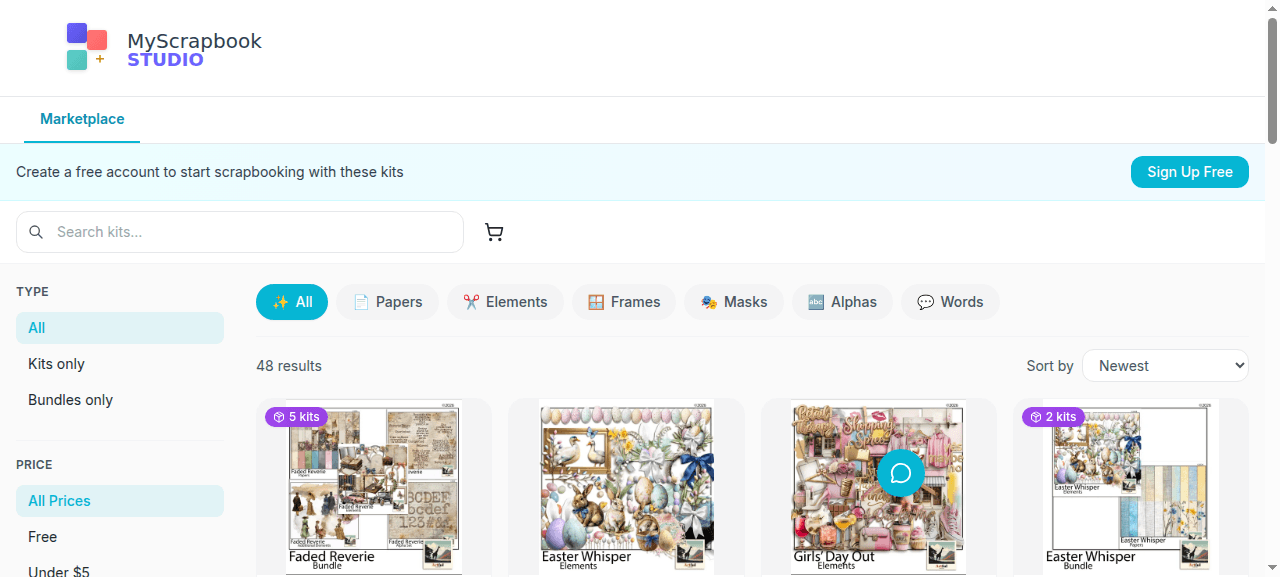
A kit is a themed pack of papers, elements, and frames — what you'd buy in a craft store, but digital. A template is a pre-built page layout. Together they're the fastest way to make a finished-looking page in five minutes.
Your kit library#
Right panel → Kits tab. You see every kit you own. Each kit expands to show:
- Papers — full-page background designs, drag onto canvas to use as a background.
- Elements — small decorative items (ribbons, tags, flowers, frames). Drag onto the canvas as accents.
- Frames — pre-shaped photo frames you can drop a photo into.
Kits are in the marketplace.
Using kit elements#
Drag from the kit panel onto the canvas. Resize and rotate like any object. Kit elements are PNGs with transparent backgrounds, so they layer cleanly over papers and photos.
Using templates#
Right panel → Templates tab. You see thumbnails of pre-built layouts.
Click a template. It opens a dialog asking how to apply it:
- Replace current page — wipes the page and applies the template.
- Add as new page — keeps your current work, adds a new page with the template.
Once applied, the template's drop zones are waiting for your photos. Drag photos in. The mats, masks, and elements are already placed.
Saving your own templates#
Made a layout you love? Reuse it.
- Open the page you want to template-ise.
- Floating toolbar → Save Template.
- Name it. Optional: add a category.
- It now appears in your Templates tab for future projects.
Templates save the structure (drop zones, mats, masks, text styles, elements), not the specific photos.
Marketplace — buying more kits#
Top nav → Marketplace (only visible once there's enough public content for it to be worthwhile).
The marketplace has:
- Individual kits — one themed pack each.
- Bundles — multiple kits at a discount.
Each listing shows previews of papers, elements, and example pages. Click into a listing for full details, then Add to cart → checkout.
After purchase, the kit appears in your kit library immediately.
Redeem codes#
If a creator gave you a redeem code (or you got one from a sale), go to myscrapbookstudio.com/redeem/[code]. Enter your code, the kit appears in your library. No payment needed.
Removing a kit#
You can hide kits you're not using — kit panel → kit menu → Hide. They stay in your account, just don't clutter the panel. You can unhide later. (Outright deletion isn't possible — purchased kits are tied to your account.)
Next#
08 — Pages & Spreads — multi-page albums.