Getting Started
Try the editor without signing up, create an account, and understand what gets saved where.
2 min read
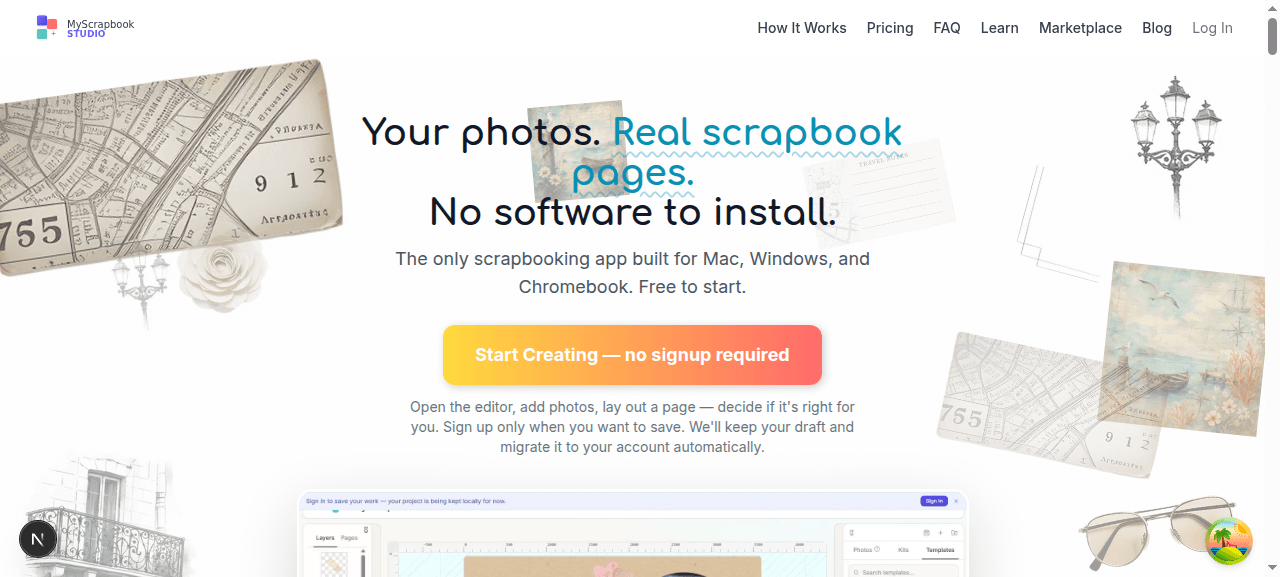
You don't need an account to try MyScrapbook Studio. Open it, click into the editor, start placing photos. Sign in only when you want to save your work permanently.
Try it without signing up#
- Go to myscrapbookstudio.com.
- Click Start creating (or any "Try it free" link).
- You land in the editor with a blank page. Anything you do is saved as a draft in your browser's local storage.
Drafts are real — they survive a browser refresh — but they live only on this one device until you sign in. If you clear your browser data, drafts go with it.
Create an account#
You'll be prompted to sign in the first time you try to save permanently or open a project from another device.
Sign-up options:
- Email + password — magic link sent to confirm your email.
- Google sign-in — one click, no password to remember.
After signup the app does two things automatically:
- Provisions a starter scrapbook project so you have something to look at.
- If you had a draft going, migrates it into your account so nothing is lost.
Plan tiers#
You start on the Free plan. It's not a trial — it stays free.
The Free plan caps how many projects you can have at once. When you hit the cap, the dashboard tells you and offers an upgrade. Premium plans lift the project cap and unlock paid features. See Account & Plans for current limits.
What gets saved on our servers#
- Your scrapbook page (layout, text, mats, masks, references to kit elements).
- Your kit library (which kits you own, which elements are inside them).
- Your account info (email, plan).
What does not get saved on our servers:
- Your photos. They're rendered into the page on your device. The page references them locally. If you switch devices, you re-add the photos.
This is by design — your family photos are nobody's business but yours.
First-time wizard#
The first time you open the editor, a short wizard appears. The first step is Connect Your Photos — point the app at one or more folders on your computer so it can show you thumbnails and let you drag them in. You can skip this and use one-off uploads, but folder access is faster once you have lots of photos to work with.
If you skip the wizard, you can re-open it later from the photos panel.
Next#
02 — Your Dashboard — where all your projects live.