10 Digital Scrapbooking Mistakes (And How to Fix Them Fast)

Published: May 26, 2026
If your scrapbook pages never quite look the way you picture them in your head, the problem probably is not your photos. It probably is not your colour palette either. It almost always comes down to one or two decisions made right at the start — decisions most digital scrapbookers make by instinct instead of intention.
I built MyScrapBook Studio after watching hundreds of users create their first pages. The same patterns kept showing up. People would spend forty minutes picking the perfect template, then add every embellishment they liked, and wonder why the page felt messy. Or they would cram eight photos onto a single spread and then delete the whole thing because it looked wrong.
Here are the ten digital scrapbooking mistakes I see most often, why they happen, and how to fix each one in under five minutes.
1. No Clear Focal Point Before You Start
The single biggest reason a page looks unfinished is that there is no obvious place for the eye to rest. Every element competes equally. The viewer does not know where to look first.
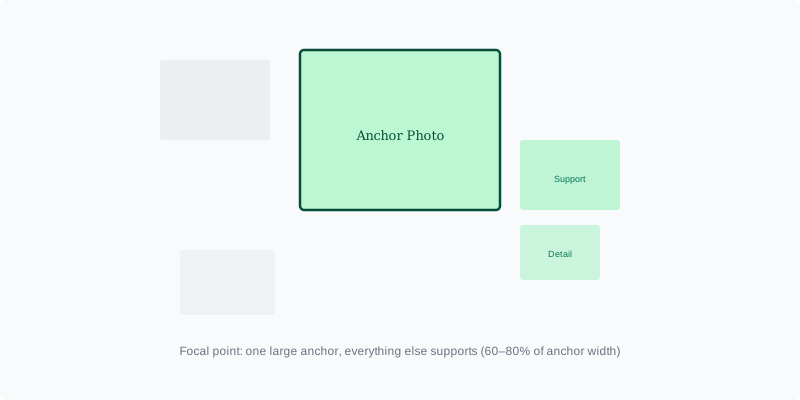
A focal point is the element that catches attention immediately — usually the strongest photo, the title, or a central image cluster. Without one, the page reads as visual noise instead of a memory.
The fix: Pick one anchor photo before you touch anything else. Make it noticeably larger than everything else on the page. Everything else should support it, not fight it. In MyScrapBook Studio, drop your anchor photo in the centre or along a third-line, then size the rest of your elements at 60–80% of that photo's width.
For more guidance on building pages with a clear visual hierarchy, see our guide on five scrapbook page layouts that never go out of style.
2. Too Many Photos on One Page

Beginners want to use every good photo from the day. That instinct makes sense — you took forty pictures, they are all lovely, and you want to keep them. But a scrapbook page is not a gallery wall. It is a single story told visually.
When a page holds more than five or six photos, none of them gets enough room. Faces shrink. Details disappear. The page becomes a grid of faces nobody can actually see.
The fix: Use the three-photo rule. Pick your strongest image as the anchor, add one supporting photo that adds context, and one detail shot that brings atmosphere. That is enough for most pages. If you have more photos, they belong on the next spread — not squeezed into this one.
If you want to see this principle in action, read how to choose the best photos for your scrapbook.
3. Colour Drift — Adding New Colours Halfway Through
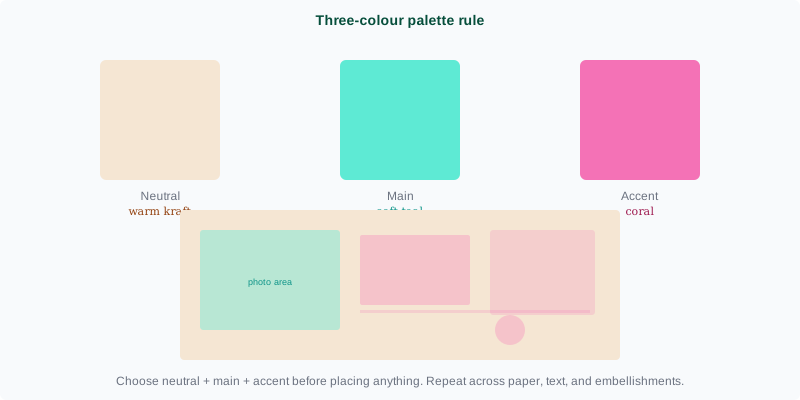
You start with a soft teal background and warm kraft paper, then someone adds pink because it looks cute, then green because it matches one flower, then gold because the page feels empty without it. Now the page has no colour logic and looks like a sticker book.
Colour consistency is what separates amateur pages from professional ones. It takes less than two minutes to set a palette and it saves hours of rearranging later.
The fix: Choose one neutral, one main colour, and one accent before you place anything. Repeat those three across paper, text, embellishments, and borders. If something does not fit, skip it. This is the single fastest improvement to page quality.
Our walkthrough on how to pick a scrapbook colour palette covers this in more detail with a step-by-step method.
4. Journaling Is Either Missing or Too Vague
A beautifully designed page still feels thin if the text reads like "We had fun" or "Best day ever." Those lines say nothing your future self would not already guess from the photo.
Journaling is the detail that would disappear without it. The crooked ponytail. The half-eaten toast. The thing someone said that made you laugh for twenty minutes. Those details turn a pretty picture into a memory you actually want to keep.
The fix: Use a three-part prompt every time you write journaling: What happened? Why did it matter? What small detail do I want to remember? Write two or three sentences answering those questions and the page suddenly feels complete.
5. Embellishments Used as Filler, Not as Meaning
Stickers and decorative elements exist to support the page's story. But beginners often use them to fill empty space instead. A page with six blank squares gets six stickers. That is decoration. It does not tell you anything about the memory.
The fix: Ask yourself whether each embellishment adds information or just noise. A travel icon near a photo of an airport gate adds context. A floral spray in the corner of a beach photo does not. If an element does not earn its place by contributing to the story, remove it.
6. No Visual Hierarchy in Text
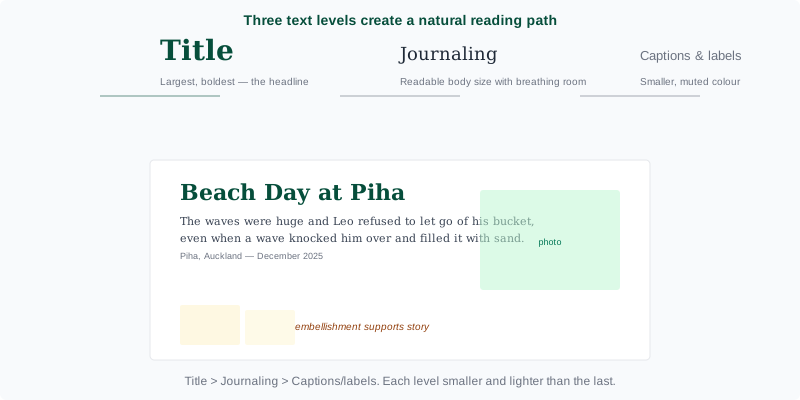
Your title, journaling block, and any captions should each serve a different role on the page. When all text uses the same font size, weight, and colour, nothing stands out and the page reads as flat.
The fix: Establish three text levels. Your title should be the largest and boldest element on the page — it is the headline. Journaling should sit at a readable body size with enough line height to breathe. Any secondary text — dates, location labels, photo captions — should be smaller and in a muted colour. That creates a natural reading path.
If you want to get more specific, our guide on using text tools like a pro covers font pairing, text curving, and spacing in the context of MyScrapBook Studio.
7. Building the Layout Backwards
Most weak pages start the same way: you open the app, shuffle through templates or elements, and hope the story reveals itself later. That is backwards. You are choosing containers before you know what they hold.
The Interaction Design Foundation notes that layout composition follows a predictable order — the strongest layouts begin with a clear focal hierarchy, not a template selection. When you know the memory before you pick the layout, the design choices stop feeling random.
The fix: Before opening the template library, answer one question: What moment is this page about? The answer narrows everything. It tells you which photos belong, which colours feel right, and which layout formula fits.
For a beginner-friendly walkthrough of the entire workflow, see how to make a digital scrapbook.
8. Ignoring White Space
White space is not empty. It is breathing room. Beginner pages feel crowded because every inch gets filled. Better scrapbookers know when to leave space around the title, between photo clusters, and at the edge of the page.
Interaction Design Foundation research identifies negative space as one of the two principles most reliably separating amateur layouts from professional ones, alongside visual hierarchy. White space makes your focal photo stand out, your journaling easier to read, and the whole page feel calmer.
The fix: If a page feels noisy, remove one decorative cluster and widen the gap between your main elements. That single change often improves the page more than adding another element ever could.
9. Saving Only Flattened Files
This mistake does not show up until three months later, when you want to fix a typo or adjust a photo position and realise the page is a single JPEG. You have to recreate everything from scratch.
Traditional scrapbookers do not have this problem. Digital scrapbookers do. Every time you export a page for sharing or printing, you flatten it. The working file is where the layers live.
The fix: Always save the layered project file first, then export a flattened copy second. In MyScrapBook Studio, your projects save automatically to the cloud, so the layered version always exists. But if you are working with any other tool, make the layered file your master and the exported JPEG your copy, not the other way around.
10. Chasing Perfection Instead of Finishing the Page
Perfectionism is the page killer. You adjust a photo position by three pixels, change the title font twice, add an embellishment, remove it, add it again, and three hours later you are still not finished.
A finished imperfect page teaches you more than a perfect half-built one. Finishing forces decisions. Decisions build skill. The scrapbookers who improve fastest are the ones who ship pages regularly, not the ones who tweak endlessly.
I see this constantly when people try to build a digital scrapbook for the first time. They want every page to be gallery-worthy. Real pages are supposed to be finished, not perfect.
The fix: Set a timer for thirty minutes. Drop your photos in, pick a layout, write your journaling, add two embellishments maximum, and save it when the timer goes off. You can always come back. But the page will exist.
Common Mistakes to Avoid — Quick Reference
| Mistake | Why it happens | How to fix it |
|---|---|---|
| No focal point | Everything feels equally important | Pick one anchor photo and make it larger than everything else |
| Too many photos | You want to use every good shot | Use three photos per page: anchor, support, detail |
| Colour drift | Adding colours that look good in isolation | Lock three colours upfront and stick to them |
| Vague journaling | You assume the photo tells the whole story | Write specific details: quotes, feelings, tiny facts |
| Sticker-as-filler mentality | Empty space feels unfinished | Only add embellishments that contribute to the story |
| Flat text hierarchy | Fonts all look the same size | Three text levels: title > journaling > labels |
| Layout backwards | Structure before story | Know the memory first, then pick the layout |
| No white space | Crowded pages feel busy | Remove one element and widen gaps |
| Flattened-only files | You forget the layered version is the source of truth | Save layered first, export flattened second |
| Chasing perfection | Every element gets second-guessed | Set a timer, build, ship, improve next time |
FAQ: Fixing Digital Scrapbooking Mistakes
How do I know which scrapbooking mistakes I am making?
Look at your finished pages and ask three questions: Where does my eye land first? Can I read the journaling without squinting? Does the page feel calm or crowded? If you cannot answer any of those confidently, the fixes above will help.
Is it better to use fewer photos per page?
Yes, nearly always. Three well-chosen photos beat eight crowded ones. The goal is to tell one story per page clearly. If you have more photos, they belong on the next spread.
What is the fastest way to make my pages look more professional?
Lock a three-colour palette and repeat it across the page. Consistent colour does more than any template will.
How do I stop overthinking every element on the page?
Set a thirty-minute timer. When it goes off, the page is done. You can refine it later, but it exists. That habit alone will double your output in a month.
Can I fix these mistakes after a page is already finished?
Most of them are one or two clicks to correct. Remove excess photos, widen gaps, unify colours, or rewrite weak journaling. The page will transform immediately.
What to Try Next
If you want a structured way to practise these fixes, work through how to improve your scrapbooking skills — it maps out a seven-day practice plan with one skill per day. If you are completely new to the workflow, start with the complete beginner's guide to digital scrapbooking.
Written by Ashley Weyers, founder of MyScrapBook Studio. After watching hundreds of users create their first scrapbook pages, these ten mistakes showed up again and again. Every fix above takes under five minutes and makes pages look noticeably better.
Related Kits
Kits from creators in our marketplace that match this article.
Related guides
5 Scrapbook Page Layouts That Never Go Out of Style
Wondering which scrapbook page layout to try? These 5 have worked for beginners and veterans alike — pick one and your next page practically lays itself out.
How to Improve Scrapbooking Skills: 15 Proven Techniques
Most scrapbookers stay stuck buying more supplies instead of building better habits. Here are 15 skills that move the needle — with a free 7-day practice plan.
How to Organize Digital Photos for Scrapbooking (Fast)
Use this simple photo organization system to sort your camera roll, reduce clutter, and start scrapbooking with the right photos every time.
How to Pick a Scrapbook Color Palette That Makes Every Page Look Polished
Follow this practical 5-step method to choose scrapbook colors that flatter your photos, avoid muddy pages, and create cohesive, polished layouts in minutes.