Digital Scrapbooking for Beginners: The Complete Guide (2026)

Digital Scrapbooking for Beginners: The Complete Guide (2026)
Published: March 25, 2026 | Last updated: 2026-05-29
Ashley Weyers, Founder of MyScrapBook Studio
TL;DR: Digital scrapbooking is the practice of creating memory albums using software instead of physical paper, scissors, and glue — you get full creative control with no mess, no clutter, and automatic backups. Beginners need three things to start: a device, some photos, and a free tool like MyScrapBook Studio.
Last year I found a folder on my phone labeled "Sort Later" with 2,300 photos in it. The oldest was from 2019. I hadn't sorted a single one. If your camera roll looks anything like mine did, you're in the right place.
Digital scrapbooking for beginners can feel overwhelming at first. The software options, the design terminology, the sheer volume of photos to sort through. But if you can drag, drop, and click, you already have the skills you need. As the founder of MyScrapBook Studio, I built a tool specifically because I was tired of watching my own family photos collect digital dust. I wanted something that felt creative without requiring a design degree.
This guide covers everything you need to go from "I have too many photos" to "I just made my first scrapbook page." No prior experience required.
In This Article
- What Is Digital Scrapbooking?
- Why Is Digital Scrapbooking Worth Your Time?
- What Do Beginners Actually Need for Digital Scrapbooking?
- How Should You Organize Your Photos Before Starting?
- What Are the Core Digital Scrapbook Elements?
- How Do You Create Your First Digital Scrapbook Page?
- What Are the Essential Design Tips for Beginners?
- How Do You Save, Share, and Print Your Pages?
- How Do You Choose the Right Digital Scrapbooking Software?
- How Do You Build a Habit From One Page to a Full Album?
- What Are the Most Common Digital Scrapbooking Mistakes?
- Frequently Asked Questions
What Is Digital Scrapbooking?
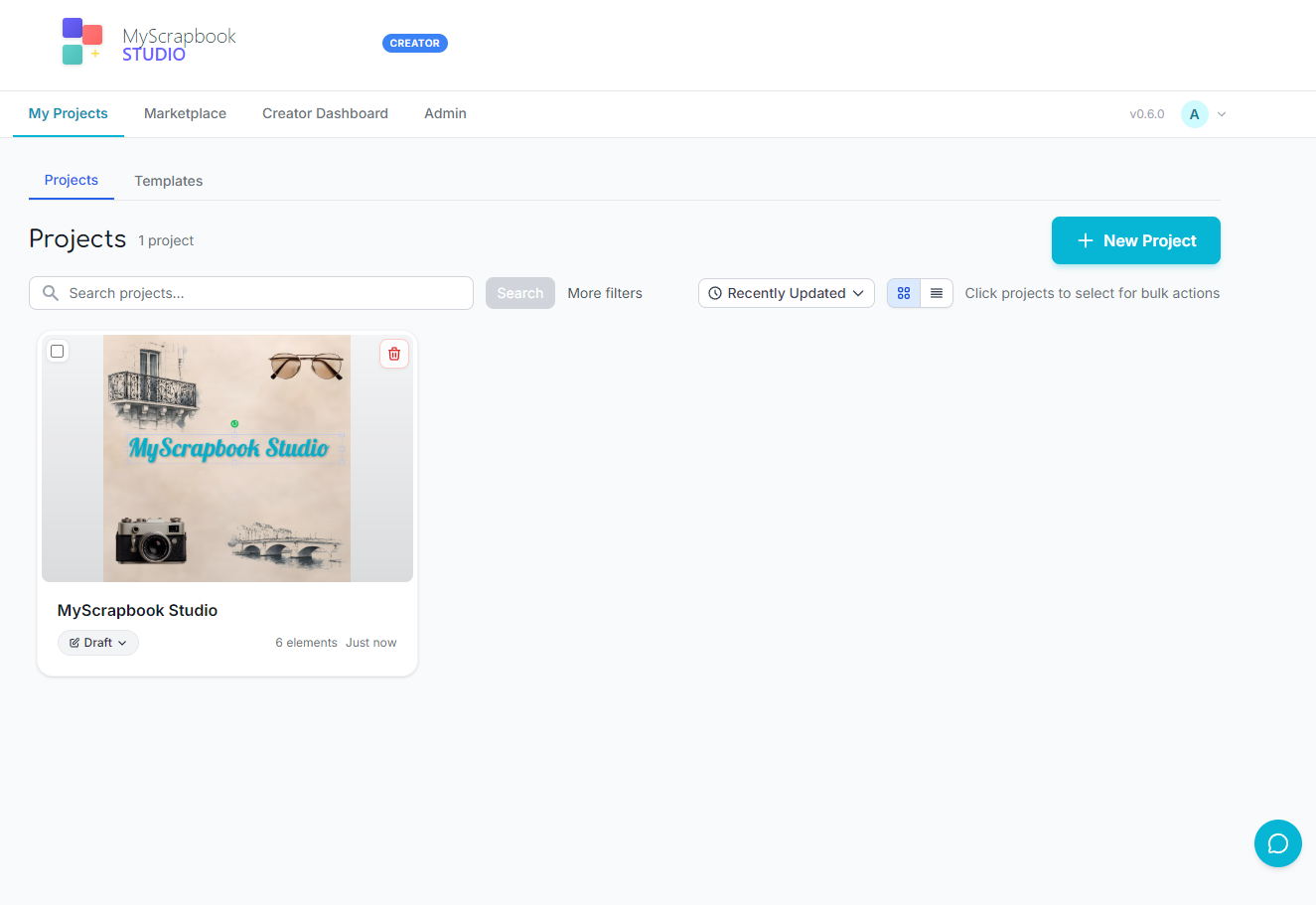
Digital scrapbooking is the process of creating scrapbook pages and memory books using software instead of physical supplies like paper, scissors, and glue. Users arrange photos, text, decorative elements, and digital papers on a virtual canvas, typically sized at the standard 12x12 inch scrapbook page dimension. Unlike traditional scrapbooking, digital scrapbooking requires no physical storage space — a single project folder replaces boxes of craft supplies — and offers unlimited undos, making it especially accessible for beginners. Most digital scrapbooking tools use a layer-based editing system where each element sits on its own layer and can be moved, resized, rotated, and edited independently without affecting other elements on the page.
The concept has been around since the early 2000s, but the tools have improved dramatically. What once required expensive desktop software like Photoshop now works in your browser. Modern digital scrapbooking apps handle the heavy lifting so you can focus on the creative part: telling your story through photos and words.
According to the Library of Congress digital preservation guidelines, digital formats are actually one of the most reliable ways to preserve personal and family history for future generations, as long as you follow basic storage practices (which we will cover later in this guide).
The core appeal is simple: you get all the creative satisfaction of traditional scrapbooking without the mess, the expense, or the storage problem. Your pages live in the cloud. They never yellow or fade. And you can share them with family anywhere in the world with a single link.
Why Is Digital Scrapbooking Worth Your Time?
You might be wondering whether digital scrapbooking is just a fad or whether it's actually worth learning. I've been building a scrapbooking tool and talking to scrapbookers for years now, and the short answer is: it sticks because it solves real problems.
Digital scrapbooking offers several measurable advantages over traditional scrapbooking: zero ongoing supply costs (physical scrapbooking averages $50-100 per album in paper, stickers, and adhesives), no dedicated workspace requirement, and the ability to work in sessions as short as 15 minutes. Pages are stored in the cloud rather than in physical albums, so they never yellow, fade, or suffer water damage. Finished pages can be shared instantly with family worldwide via a link, or exported at 300 DPI for professional-quality printing. According to the Journal of Positive Psychology, the act of revisiting and curating positive memories — exactly what scrapbooking does — has measurable benefits for wellbeing and life satisfaction.
It solves the "someday" problem. Most people have good intentions about organizing their photos. Digital scrapbooking gives those intentions a structure. Instead of "I should do something with these photos," you sit down and make one page. Then another. Suddenly, you have an album.
It also fits into busy lives in a way traditional scrapbooking never could. Physical scrapbooking requires a dedicated workspace, supplies laid out, and uninterrupted time. Digital scrapbooking works in 15-minute sessions on your laptop after the kids are in bed. I've personally made some of my favorite pages during late-night sessions with a cup of tea, no cleanup required.
The cost barrier is low. Physical scrapbooking supplies add up quickly: specialty paper, stickers, adhesives, cutting tools. With digital, many free resources and beginner-friendly templates are available to get you started without spending a cent. And your work is never "ruined." Spill coffee on a physical scrapbook page and it's gone. Place an element wrong in a digital layout and you just hit undo. That freedom to experiment without consequences is what makes digital scrapbooking so accessible for beginners.
Sharing is the other big advantage. Print a physical scrapbook and it sits on one shelf in one house. Create a digital scrapbook and you can send it to grandparents across the country, share a link with your partner, or order printed copies for the whole family.
What Do Beginners Actually Need for Digital Scrapbooking?
One of the biggest barriers for people new to digital scrapbooking is the assumption that you need expensive software and a powerful computer. You don't. Here's the breakdown of what is essential, what is nice to have, and what you can skip entirely.
To start digital scrapbooking, you need only three things: a device with a web browser, your photos, and a scrapbooking application. No expensive software, no powerful computer, and no design experience required. Browser-based tools like MyScrapBook Studio run on any device that can handle email — including Chromebooks, tablets, and older laptops. Phone photos shot on any modern smartphone from the past five years produce images at resolutions well above the 300 DPI threshold needed for print-quality scrapbook pages. Many scrapbooking platforms offer free tiers with enough templates, backgrounds, and embellishments to create complete pages without spending anything upfront.
Essential
- A computer, tablet, or phone. Any device with a browser works. You don't need a high-end machine. If it can run Gmail, it can run most modern scrapbooking apps.
- Your photos. Start with whatever you have. They don't need to be professionally shot. Phone photos are fine. Modern smartphones shoot at resolutions well above the 300 DPI you need for print-quality scrapbook pages.
- A scrapbooking application. This is where your creative work happens. I recommend MyScrapBook Studio because I built it specifically for beginners, but the key is choosing something that doesn't overwhelm you on day one.
Nice to Have
- A larger screen. Working on a laptop or desktop gives you more room to see your layout. It isn't required, but it makes the experience more enjoyable.
- Cloud storage. Services like Google Photos, iCloud, or Dropbox make it easy to access your photos from any device.
- A simple photo editor. For basic cropping or color correction before importing photos. Most scrapbook apps include basic editing tools.
Skip For Now
- Professional design software. Photoshop and Illustrator are powerful but completely unnecessary for beginners. They have steep learning curves that will slow you down.
- Paid font collections. Free fonts are abundant and more than adequate for getting started.
- A graphics tablet. These are useful for digital artists, but scrapbooking is primarily drag-and-drop work.
How Should You Organize Your Photos Before Starting?
This is the step most people want to skip. I get it. Sorting photos isn't the fun part. But spending 20 minutes organizing before you start will save you hours of frustration later.
You don't need to organize your entire photo library. That's a trap. Instead, pick one project (a holiday, a birthday, a school year) and gather just those photos.
The Simple Folder Method
- Create a project folder on your desktop or in your cloud storage. Name it something obvious: "Maya's 5th Birthday" or "Italy Trip 2025."
- Copy (do not move) 15-30 photos from your camera roll into that folder. Be selective. Not every photo needs to make the cut. Choose the ones that make you feel something.
- Rename the folder with a date prefix if you want to stay organized long-term: "2025-06-Maya-Birthday."
That's it. You now have a tidy collection of photos ready to import into your scrapbooking project. As you organize your family photos for scrapbooking, you'll develop your own system. But this simple method gets you started without paralysis.
A Quick Tip From Personal Experience
When I first started organizing photos for scrapbook pages, I tried to sort my entire 40,000-photo library before making a single page. Two weeks later, I had a cleanly organized photo library and zero scrapbook pages. Don't make my mistake. Pick one event, grab the photos, and start creating. Organization can happen gradually.
What Are the Core Digital Scrapbook Elements?
Before you open any software, it helps to know what you're working with. Digital scrapbooking uses the same elements as traditional scrapbooking, except they exist as image files instead of physical objects.
Backgrounds and ScrapbookPaper
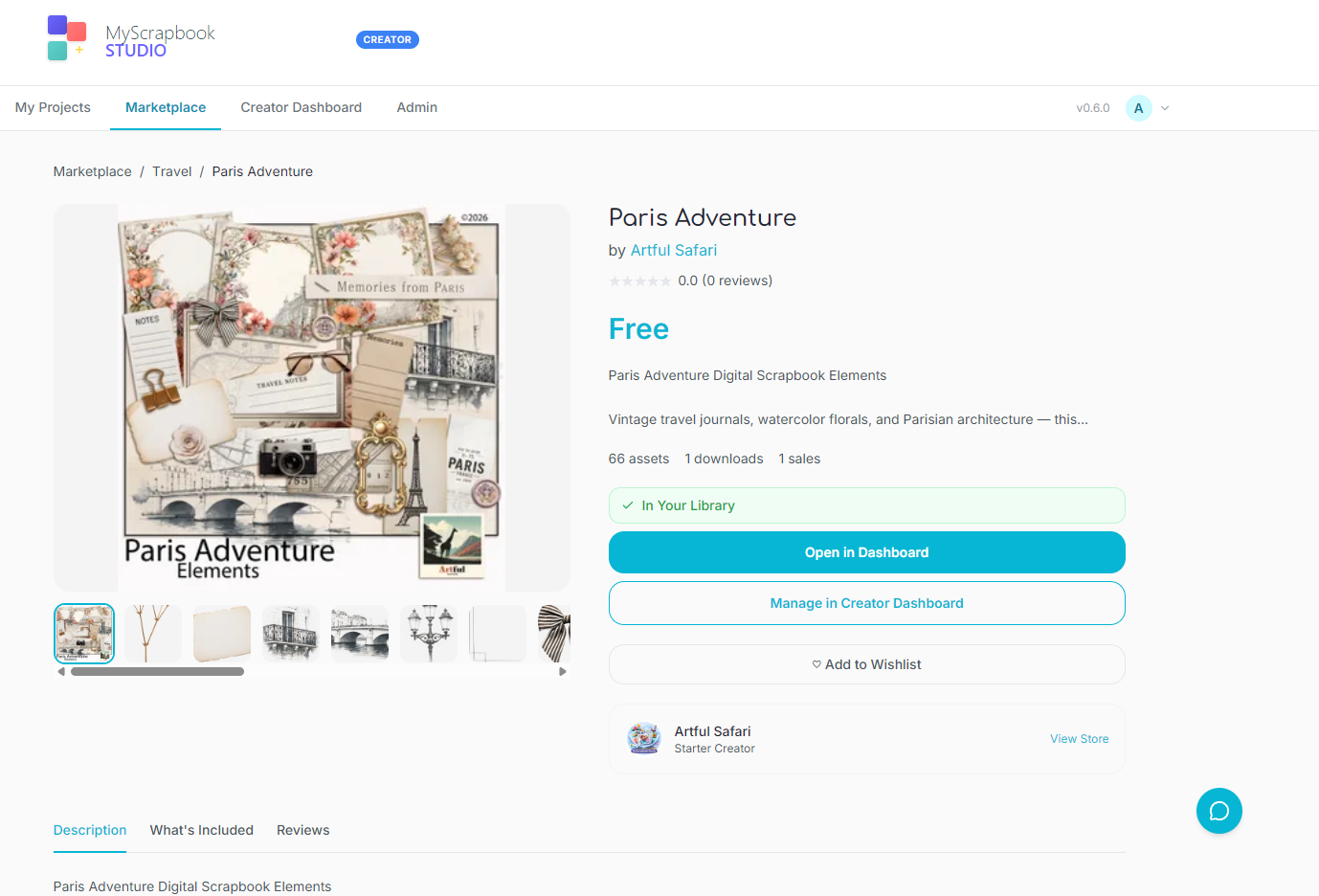
Every scrapbook page starts with a background. This is the base layer, the foundation everything else sits on. Backgrounds can be solid colors, subtle textures, or patterned designs. In the digital world, you'll hear this referred to as ScrapbookPaper, which is essentially the digital equivalent of the decorative paper you would buy at a craft store. Most beginner-friendly scrapbook apps come with a library of ScrapbookPaper designs so you don't need to source them separately.
Photos
These are the heart of your page. You import your photos and resize, crop, rotate, and position them on the canvas. Many beginners worry about photo quality, but you should not. Phone photos work cleanly in scrapbook layouts.
Embellishments
Digital stickers, frames, ribbons, buttons, flowers, tape. Anything decorative that adds personality to your page. These are PNG files with transparent backgrounds that layer on top of your other elements.
Text and Journaling
Words give your photos context. A date, a caption, a short paragraph about what was happening when the photo was taken. This is what turns a photo collage into a scrapbook page.
Layers
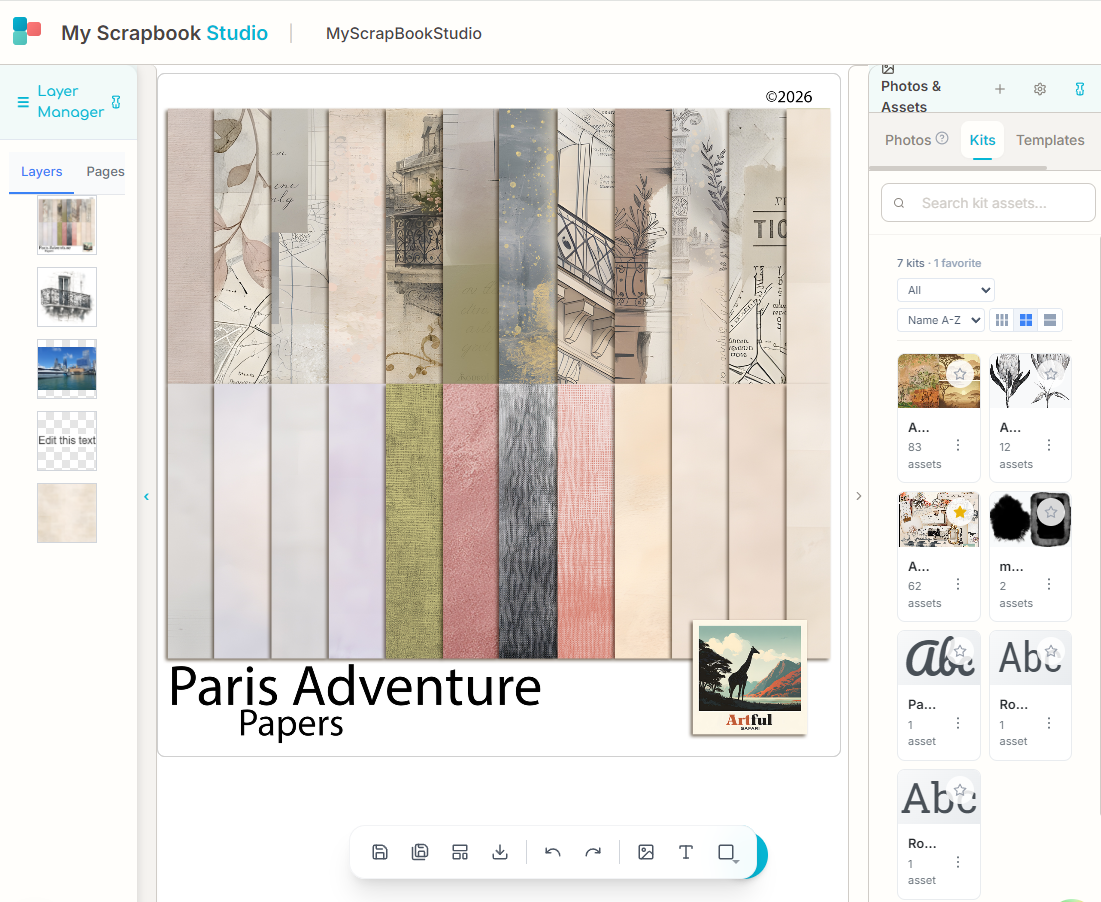
If you've ever stacked transparencies on an overhead projector (showing my age here), you understand layers. Every element on your scrapbook page exists on its own layer. The background is on the bottom, photos go above it, embellishments on top of those, and text on the very top. Once layers click for you, everything else in digital scrapbooking gets easier. It's one of the most useful concepts to grasp early on.
How Do You Create Your First Digital Scrapbook Page?
This is the part you've been waiting for. Let's actually make something. I'll walk you through creating a simple, attractive scrapbook page from scratch. The entire process takes about 15 minutes once you know the steps.
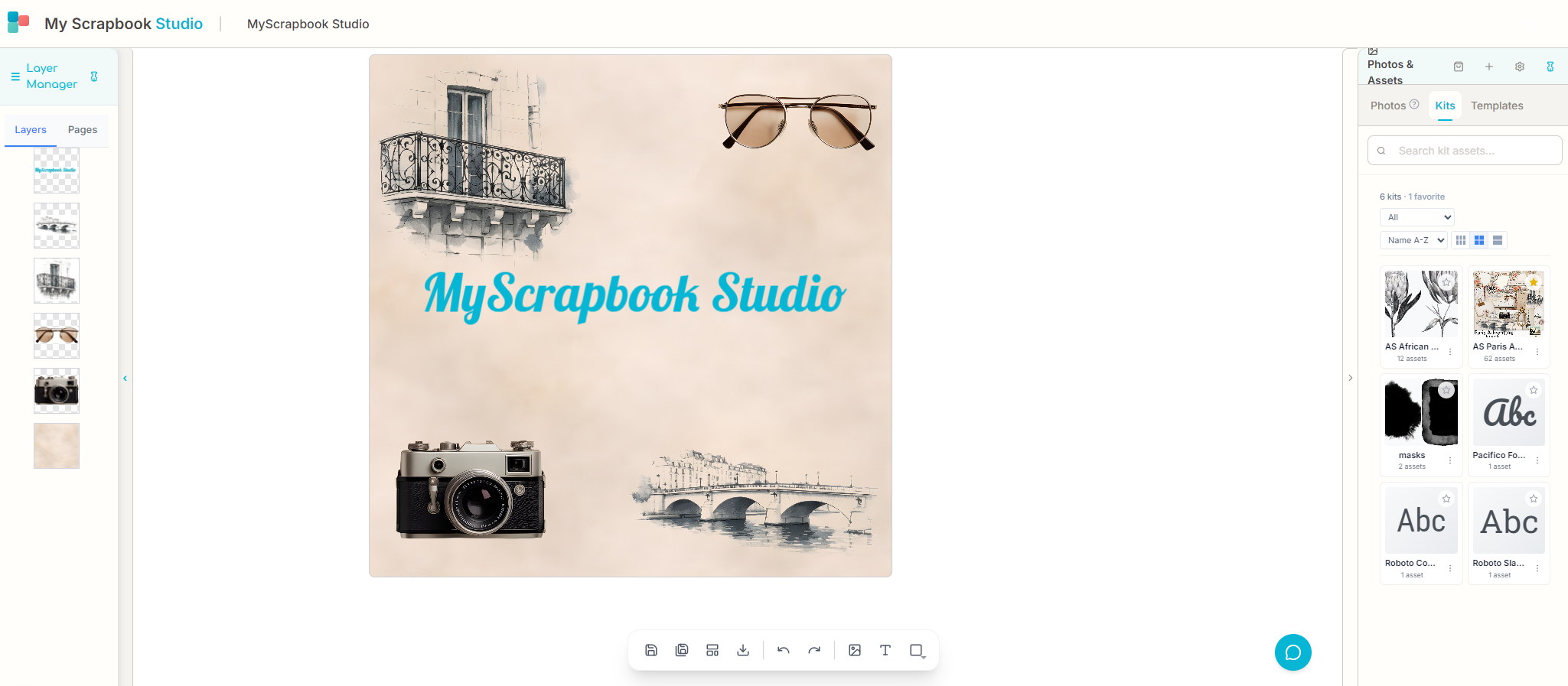
Creating a digital scrapbook page follows six core steps: open a canvas (standard size is 12x12 inches), choose a background or ScrapbookPaper, import 2-4 photos and arrange them with one hero shot taking roughly 40% of the page, add 2-3 embellishments for personality, write a title and short journal caption, then review the overall balance. Using a pre-made template, most beginners complete their first page in 15-20 minutes. Working from a blank canvas takes longer — typically 30-45 minutes — but offers full creative control. The key beginner principle is "less is more": start with fewer elements and add only if the page feels empty, rather than filling every inch of space.
Step 1: Open Your Canvas
Launch your scrapbooking app and create a new project. Most applications default to a 12x12 inch canvas, which is the standard scrapbook page size. In MyScrapBook Studio, you'll see a clean white canvas ready to go.
Step 2: Choose a Background
Browse the background library and pick something that fits the mood of your photos. Beach holiday? Try a sandy texture or ocean blue. Birthday party? Something bright and festive. Don't overthink this. You can always change it later. That's the beauty of digital.
Step 3: Add Your Photos
Import 2-4 photos from the folder you prepared earlier. Drag them onto the canvas and resize them. A good starting layout for beginners:
- One large photo (your hero shot) taking up about 40% of the page
- Two smaller photos arranged beside or below it
- White space. Don't fill every inch. Let the page breathe.
Step 4: Add Embellishments
Browse the embellishment library and add 2-3 decorative elements. Less is more when you're starting out. A simple frame around your main photo, a small cluster of flowers in a corner, or a piece of decorative tape can be enough to make the page feel polished.
Step 5: Add Your Text
Click the text tool and add a title: the event name, the date, or a short phrase that sums up the moment. Place it where it feels natural, usually near the top or bottom of the page. Then add a small caption or journal entry near one of the photos. Even just "Maya, age 5, blowing out candles. She wished for a puppy (again)" turns a photo into a story.
Step 6: Review and Adjust
Step back and look at your page as a whole. Is there a clear focal point? Does the eye know where to look first? Move things around until it feels balanced. Remember, you can undo anything.
What Are the Essential Design Tips for Beginners?
You don't need a design background to make pages that look good. These are the core principles I share with every beginner, and they apply whether you're using MyScrapBook Studio or any other tool.
Keep It Simple
The number one mistake beginners make is overloading the page. You don't need to use every embellishment in the library. Start with fewer elements and add only if the page feels empty. A clean, simple layout always looks more professional than a cluttered one.
Use the Rule of Thirds
Picture your canvas divided into a 3x3 grid. Place your most important elements (your hero photo, your title) along those grid lines or at their intersections. This creates naturally pleasing compositions without having to think about "design."
Create Visual Hierarchy
Your page should have one clear star, usually your best photo. Make it the largest element. Supporting photos should be smaller. Text should complement, not compete. If everything is the same size, nothing stands out.
Stick to a Color Palette
Pick 2-3 colors that complement your photos and use them consistently across your backgrounds, text, and embellishments. Most digital scrapbooking applications let you sample colors directly from your photos, which is a foolproof way to build a cohesive palette.
Leave White Space
Empty space isn't wasted space. It's breathing room. White space (or any open area without elements) makes your page feel intentional. Crowded pages feel chaotic. When in doubt, remove something rather than adding something.
These are the same principles professional graphic designers use. If you want a head start, beginner-friendly templates apply these rules automatically so you can focus on your photos and story rather than layout decisions.
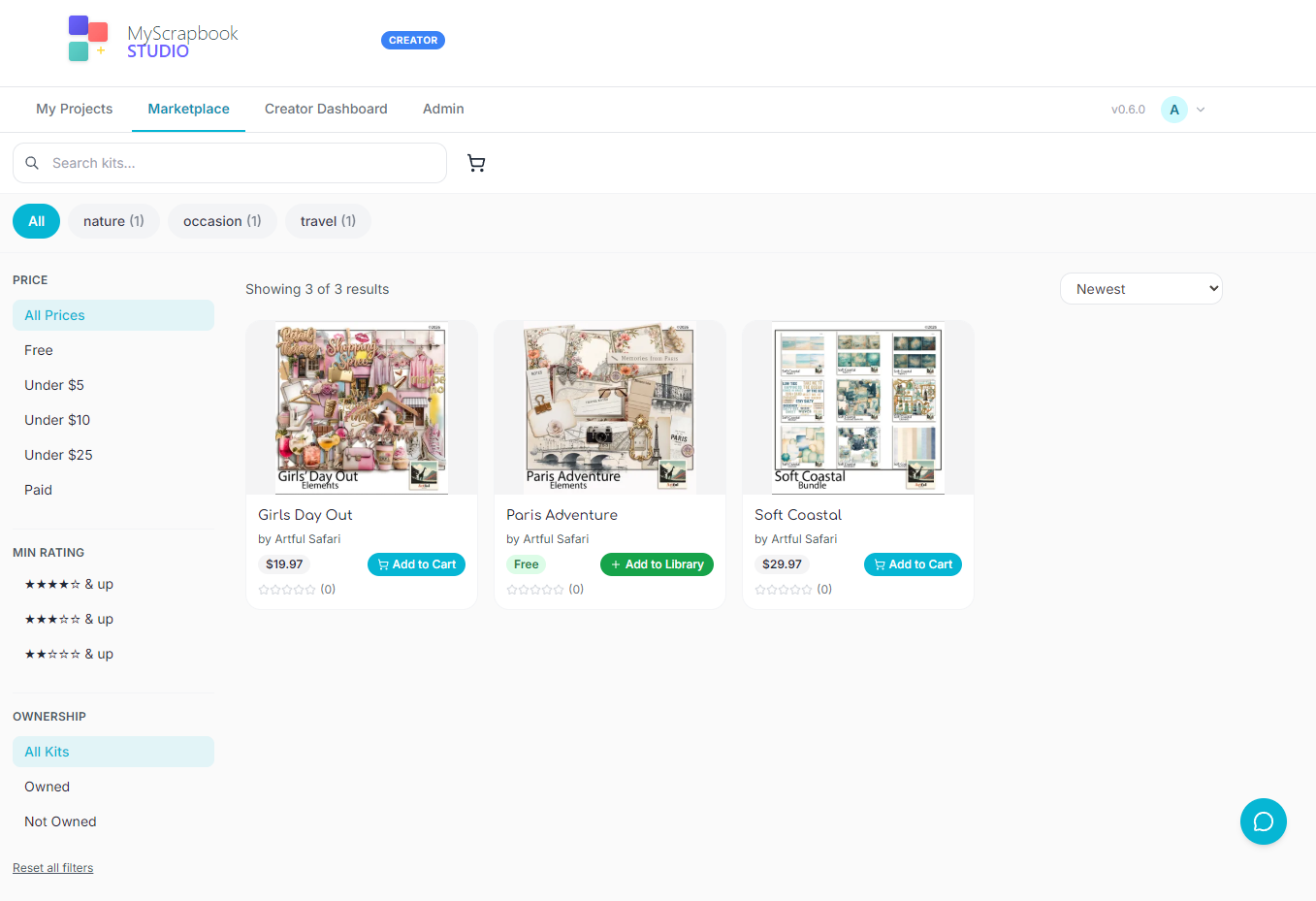
How Do You Save, Share, and Print Your Pages?
Making a page you love is only half the experience. What you do with it afterward matters just as much.
Saving Your Work
Most cloud-based scrapbook apps save your work automatically as you go. If you're using desktop software, save frequently (and keep backups). I recommend saving in two formats:
- The project file. This preserves all your layers and editable elements so you can come back and make changes later.
- A high-resolution export. A JPEG or PNG at 300 DPI for printing, or 72 DPI for screen sharing.
According to digital preservation best practices, keeping your original project files alongside your exports gives you the most flexibility long-term.
Sharing Digitally
This is where digital scrapbooking really shines. Share your pages by:
- Sending a direct link from your scrapbook app. The recipient can view it in their browser without downloading anything.
- Exporting as an image and sending via text, email, or messaging apps.
- Creating a slideshow or video from multiple pages, which is great for grandparents who enjoy watching rather than clicking.
- Posting on social media. Instagram and Pinterest are natural homes for scrapbook content.
Printing
Digital doesn't mean screen-only. You can print your pages at home on quality photo paper, or use a professional printing service for hardcover photo books. Most services accept standard JPEG uploads. Export at 300 DPI for the sharpest results.
When you preserve family memories in printed form, you get the best of both worlds: a digital backup that lasts forever and a physical book you can hold.
How Do You Choose the Right Digital Scrapbooking Software?
The tool you choose matters, but not as much as you think. The best software is the one you'll actually use, not the one with the longest feature list. Here's how to think about it.
What to Look For as a Beginner
- Low learning curve. You should be able to create your first page within 15 minutes of signing up. If the software requires a tutorial series before you can do anything, it isn't built for beginners.
- Built-in asset library. Backgrounds, embellishments, fonts, and templates should come included. Hunting for third-party resources before you can start is a friction point that kills momentum.
- Cloud-based access. Being able to work from any device, and never losing your work to a crashed hard drive, makes a real difference day to day.
- Export options. You need to be able to download your finished pages as high-quality images for printing and sharing.
Popular Options in 2026
There are several solid choices depending on what matters most to you. Canva is a general-purpose design tool with scrapbook templates, but it isn't purpose-built for scrapbooking, so you'll outgrow the templates quickly. Forever and Creative Memories cater to traditional scrapbookers moving digital, with large asset libraries but steeper price tags. MyScrapBook Studio (which I built) is designed specifically for beginners who want a dedicated scrapbooking tool without the complexity of general design software.
Free vs. Paid Options
Many applications offer free tiers you can do real work in. MyScrapBook Studio includes a free tier with enough templates and elements to create complete pages. Paid tiers typically include larger asset libraries, more storage, and advanced features like custom fonts and premium embellishments.
My recommendation: start with a free option, make 5-10 pages, and then decide whether an upgrade would actually improve your experience. Don't pay for features you might not use.
For a deeper comparison of what is available in 2026, including browser-based tools, desktop software, and mobile apps, see our guide to the best digital scrapbooking software — and if you're choosing between phone and tablet options, how to pick a digital scrapbooking app.
How Do You Build a Habit From One Page to a Full Album?
Making one page is exciting. Turning it into a regular practice is where things get really interesting. Here's what I've learned from both my own experience and the scrapbookers I talk to.
Start Small
Commit to one page per week. Not one album. Not one page per day. One page per week. That's sustainable, and it still produces a 52-page album by the end of the year. That's a real album.
Batch Your Workflow
Rather than starting from scratch each time, try batching similar tasks:
- Photo selection session: Spend 15 minutes choosing photos for your next 3-4 pages.
- Layout session: Arrange photos and backgrounds for multiple pages in one sitting.
- Journaling session: Write captions and text for several pages at once.
This is more efficient than context-switching between tasks for every single page.
Use Templates
Templates aren't cheating. They're scaffolding. A good template gives you a pre-designed layout where you just swap in your own photos and text. As you gain confidence, you'll start modifying templates and eventually creating layouts from scratch. But starting with templates removes the "blank canvas paralysis" that stops many beginners.
In MyScrapBook Studio, I designed the starter templates specifically for this purpose. They look polished out of the box but are fully customizable when you're ready to experiment.
Create Themed Albums
Instead of randomly scrapbooking whatever photos you find, pick a theme:
- Annual family album: one page per month, 12 pages total
- Holiday album: dedicated to one trip or holiday
- Baby's first year: monthly milestones
- School years: first day of school, class photos, achievements
- Recipe album: photos of family meals with handwritten recipes
- Family history album: inherited photographs, scanned once and labelled — see how to build a family history scrapbook
Themes give you direction. Direction keeps you going.
According to research published in the Journal of Positive Psychology, the act of revisiting and curating positive memories (exactly what scrapbooking does) has measurable benefits for wellbeing and life satisfaction. So this hobby isn't just creative. It's good for you. Like, measurably good.
What Are the Most Common Digital Scrapbooking Mistakes?
After watching hundreds of beginners create their first pages, these are the patterns I see most often.
Mistake 1: Trying to Scrapbook Every Photo
Why it happens: You feel guilty leaving photos out. Everything feels important.
How to fix it: Be ruthless. For any event, choose 3-5 of the best photos. The rest stay safe in your camera roll. They aren't gone. A focused page with 3 great photos tells a better story than a crowded page with 15 mediocre ones.
Mistake 2: Skipping the Journaling
Why it happens: You think the photos speak for themselves. Or you don't know what to write.
How to fix it: Write one sentence. Just one. "Dad's famous pancakes, Sunday morning, age 4." That sentence will mean everything in 20 years when you've forgotten the details. You don't need paragraphs. You need context that tells the story.
Mistake 3: Overcomplicating the Design
Why it happens: You see elaborate pages on Pinterest and feel like yours should look the same.
How to fix it: Those Pinterest pages were made by people with years of experience. Your first pages should be simple. One background, 2-3 photos, a title, a caption. That's a complete page you can be proud of. Complexity comes with practice, not the other way around.
Mistake 4: Not Backing Up Your Work
Why it happens: You assume cloud storage means your work is safe forever.
How to fix it: Export finished pages to your own storage: a hard drive, Google Drive, or both. Cloud services can change their terms, shut down, or lose data. Having your own copy gives you independence. Export at 300 DPI so you always have print-quality files.
Mistake 5: Waiting for Polish Before Starting
Why it happens: You want your first page to be amazing. So you research, watch tutorials, browse supplies, and never actually start.
How to fix it: Your first page won't be your best. That's fine. It'll be your first, and that's what makes it valuable. Open the app, pick a photo, drop it on a page, and add a title. You can refine your skills over time, but only if you start.
Frequently Asked Questions
Is digital scrapbooking hard to learn?
Digital scrapbooking is not hard to learn — most beginners create their first complete page within 15-30 minutes using a template. The core skills involved are dragging, dropping, resizing, and typing — the same actions you use in email and social media every day. No design training or artistic ability is required. Modern scrapbooking apps like MyScrapBook Studio provide pre-designed templates that handle layout decisions automatically, so beginners only need to swap in their own photos and text. The learning curve is short and progressive: start with templates, then modify them as you gain confidence, and eventually design layouts from scratch once the fundamentals feel natural.
Do I need artistic or design skills?
No. Digital scrapbooking tools are designed for everyday people, not graphic designers. Templates handle the layout decisions for you. Drag-and-drop interfaces mean you're arranging elements, not drawing them. The software does the hard work. You bring the photos and the stories.
How much does it cost to get started?
You can start for free. MyScrapBook Studio and several other tools offer free tiers with enough features to create complete pages. You'd only need to spend money if you want premium templates, bigger asset libraries, or advanced features. Physical scrapbooking, by comparison, requires an upfront investment in paper, tools, and adhesives.
Can I print my digital scrapbook pages?
Absolutely. Export your pages as high-resolution JPEG or PNG files (300 DPI) and print them at home on photo paper or upload them to a professional printing service. Many services will bind them into hardcover photo books. The quality is excellent, indistinguishable from pages designed in professional publishing software.
What if I only have phone photos?
Phone photos work great for digital scrapbooking. Modern smartphone cameras produce images more than sharp enough for scrapbook pages and even for printing. You don't need a DSLR or professional photography equipment. The best camera for scrapbooking is the one you have with you, which for most of us is our phone.
Is my work safe in the cloud?
Cloud-based tools save your work automatically and store it on secure servers. That said, I always recommend exporting finished pages to your own storage as a backup. Treat cloud storage as your primary workspace and your local backup as your safety net. This way, your memories are protected regardless of what happens to any single service.
How is digital scrapbooking different from just making a photo album?
A photo album arranges photos in chronological order, while a digital scrapbook page combines photos with decorative elements, journaling text, and intentional design to tell a story about how a moment felt — not just what happened. Scrapbook pages typically include a background or textured paper, 2-5 photos arranged for visual impact, embellishments like frames and stickers, and captions that add personal context ("She wished for a puppy — again"). Photo albums are passive archives; scrapbooks are active storytelling. The creative process of memory keeping has been shown to deepen emotional connection to memories and produce keepsakes that families return to repeatedly across generations.
How do I choose the right template for my photos?
Start with your photo count and work backward. One strong photo needs a layout with a large focal point and room to write. Three or four work well in grid or cluster templates. If your shots vary in orientation (some landscape, some portrait) look for templates with mixed-shape slots. Milestone pages like first days or graduations suit extra whitespace. Busy event pages with lots of candid shots suit a denser grid, where no single photo has to carry the whole story.
What Should You Do Next?
You know enough to start making pages now. Here's where to go from here:
-
Make your first page. Seriously, right now or tonight after dinner. Open MyScrapBook Studio, pick one photo, and create a simple page. It doesn't need to be good. It just needs to exist.
-
Learn photo organization basics. Read our guide on organizing your photos for scrapbooking so you always have the right images at your fingertips when inspiration strikes.
-
Explore memory keeping strategies. Check out timed scrapbook challenges that build the habit for practical ways to build scrapbooking into your regular routine.
Want the Free 30-Day Digital Scrapbooking Challenge Calendar?
Ready to build real momentum? I created a free 30-Day Scrapbooking Challenge Calendar designed specifically for beginners. Each day gives you a small, focused task, from choosing your first photo to completing a full album spread.
What you'll get:
- 30 daily prompts that build your skills progressively
- Theme ideas for each page so you never stare at a blank canvas
- Quick-win tasks on busy days (5 minutes) and creative deep-dives on weekends (30 minutes)
- A printable calendar you can pin above your desk
Download the free 30-Day Challenge Calendar →
No spam, no fluff. Just a month of guided scrapbooking practice delivered to your inbox.
About the Author
Ashley Weyers is the founder of MyScrapBook Studio, a digital scrapbooking platform built for people who want to preserve their memories without needing a design degree. After years of watching family photos pile up unsorted on phones and hard drives, Ashley built MyScrapBook Studio to make scrapbooking accessible and enjoyable for complete beginners. When not building scrapbook software, Ashley can be found experimenting with 3D printing, sim racing, or adding yet another photo to the ever-growing camera roll.
Have questions about getting started with digital scrapbooking? Drop a comment below or reach out to us on Pinterest. We'd love to help you create your first page.
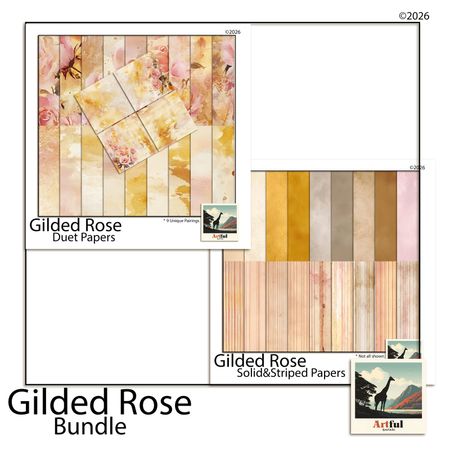
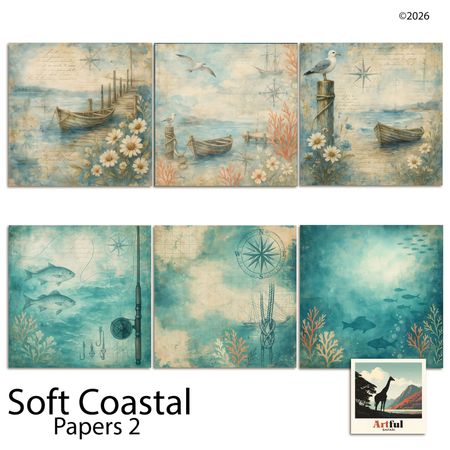
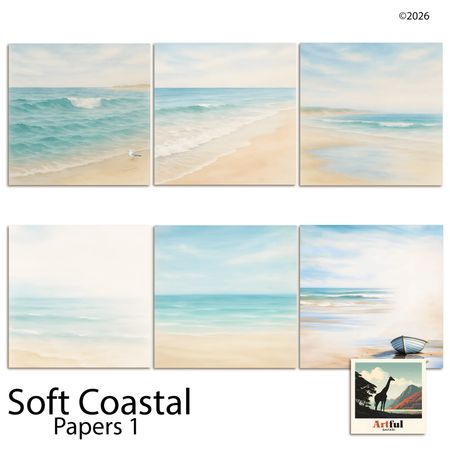
Related Kits
Kits from creators in our marketplace that match this article.
Related guides
9 Digital Scrapbooking Ideas for Beginners (Start in Your Browser)
Start scrapbooking today with nine beginner-friendly digital page ideas. Simple layouts, step-by-step examples, and mistakes to avoid — in your browser.
5 First Page Scrapbook Ideas (When You Don't Know Where to Start)
First page scrapbook ideas for when you're stuck at page zero: 5 specific starting points, what to write, and a 30-minute plan to get page one done.
Blurb BookSmart Alternative: Where to Go Now That BookSmart Is Gone
BookSmart is deprecated. BookWright migration breaks fonts and photos. If your scrapbook library is stranded in Blurb, here's where to go next.
Scrapbook Challenges: 5 Timed Prompts, Each Under an Hour
Scrapbook challenges you can finish tonight: 5 timed prompts that train layout and storytelling, plus steps to turn them into a weekly habit.