How to Plan Your Scrapbooking Week with MyScrapBook Studio

Sunday evening. The weekend's winding down, the week's not quite started yet. It's that strange in-between moment where you've got 20 minutes of quiet and your phone's still in your hand.
Instead of scrolling into next week, use that 20 minutes to set up your scrapbooking week for success. Here's how to use MyScrapbook Studio's features to plan ahead — so when Saturday comes, you're ready to create instead of figuring out what to do.
1. Batch Import Your Photos This Sunday
Don't wait until project day to dig through your camera roll. Right now, while you're in planning mode, open MSS and drag in all the photos from the past week (or past month, if you've been behind).
Here's the workflow:
- Open a new MSS project but don't start designing yet
- Use bulk import to pull in 30-50 photos at once
- MSS automatically organizes them in the photo tray on the left
- Star or heart your favourites right in the tray — these become your "priority" photos for the week
- Close the project but keep the import history — MSS remembers which photos you've added
Now you've got a curated selection ready to go. No more "where did I put that photo?" when it's time to design.
2. Pick Your Template Before Saturday
One of the biggest time-wasters in scrapbooking is opening the app and staring at a blank canvas, trying to decide what layout to use.
This Sunday, browse MSS's template library and pick one. Here's how to do it in 5 minutes:
- Go to Templates in the left sidebar
- Filter by page count (2-page, 4-page, 6-page — whatever suits your photos)
- Click through a few that catch your eye and preview them with your photos swapped in
- Save your favourite as a "favourite" — MSS remembers your top picks
When Saturday morning arrives, you're not deciding. You're just opening the project and filling in the blanks.
3. Use the Calendar View to "Schedule" Creative Time
MSS doesn't have a built-in calendar (that's on our list!), but you can simulate weekly planning using project folders and the save system.
Here's the trick:
- Create a project folder called "This Week's Scrapbook"
- Start your layout in that folder — even if it's just partially done
- Save it with a clear name: "Week 8 Family Spread - Draft 1"
- Set a personal reminder on your phone for Saturday at 10am
The point isn't to have MSS manage your calendar. The point is to have a clear next action saved and ready. "Finish the family page" is vague. "Open Week 8 Family Spread and add captions" is a 15-minute task.
4. Batch Your Text Styles
If you're the kind of person who spends 20 minutes fiddling with font sizes (no judgment — we all do it), save yourself the decision fatigue this Sunday.
In MSS:
- Open any project
- Create 3-4 text styles you love — maybe a big title, a small caption, a journal style, and a date stamp
- Use the Save as Preset feature to keep them in your library
- Now when you design, you're just applying styles, not creating them
This works for backgrounds and embellishments too. Save your go-to colours, your favourite sticker clusters, your most-used paper patterns. Build your personal toolkit once, use it forever.
5. Set a Weekly "Theme" to Keep Projects Cohesive
One of the easiest ways to scrapbook more consistently is to give each week (or month) a theme — then everything you create fits together naturally.
Ideas for themes:
- This month we're reading — document books, reading nooks, library visits
- Kitchen moments — breakfast, dinner prep, the chaos of weeknight meals
- Outdoor adventures — park visits, backyard play, nature walks
- Weeknight rituals — bath time, story time, bedtime routines
Pick one for next week. Browse MSS for backgrounds and embellishments that match. Now you've got a visual direction before you've taken a single photo.
The Planning Sunday Routine (5 Minutes Flat)
If all of this feels like too much, here's the absolute minimum viable planning session:
- Open MSS → bulk import this week's photos → star your top 5
- Browse templates → pick one → save to favorites
- Create one text style preset (title + body)
- Pick a one-word theme for the week
- Close MSS
That's it. You've spent 5 minutes and removed every barrier between you and creative time this weekend.
Next Step: Open MSS Tonight
Right now, before you close this tab and forget: open MyScrapbook Studio, import your photos, and pick one template. Even if you don't design anything tonight, you've done the hard part.
Next weekend, you'll thank this version of you.
Keep Reading
What's your scrapbooking theme for the week? Drop a comment and let's hold each other accountable.
Related Kits
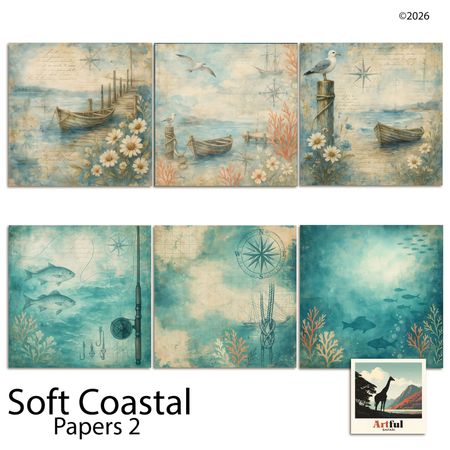
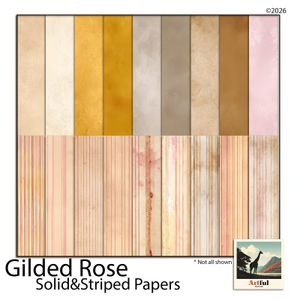
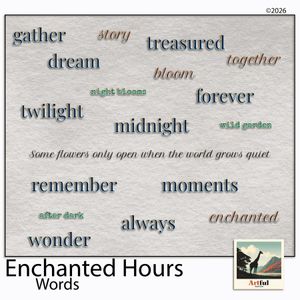
Kits from creators in our marketplace that match this article.
Related guides
Blurb Booksmart Discontinued: How to Migrate Your Projects
Blurb retired Booksmart in 2023. Here's how to export your projects, choose a replacement app, and start making memory books again.
Blurb BookSmart Alternative: Where to Go Now That BookSmart Is Gone
BookSmart is deprecated. BookWright migration breaks fonts and photos. If your scrapbook library is stranded in Blurb, here's where to go next.
How to Make a Baby Scrapbook (Digital Guide for New Parents)
Learn how to make a baby scrapbook online with this digital guide for new parents. Step-by-step tips for creating a lasting memory book.
Travel Scrapbook: How to Document Trips Worth Remembering
A travel scrapbook transforms an unorganized camera roll into a narrative you'll revisit for years. This guide covers what to capture, how to structure the scrapbook, and the tools that make it practical.